
How to Use an Image Converter Tool?
Image conversion has become an essential skill for content creators, web developers and photographers. As the modern image formats like WebP, AVIF, and HEIF are in high demand, you should convert the images into these formats and make a good impact on website performance, user experience, and SEO rankings.
So, if you want to convert images, you should use reliable Image Converter Tools online. Here we guide you with a step by step process to learn how to use an Image Converter Tool for Quick File Conversion.
What is an Image Converter?
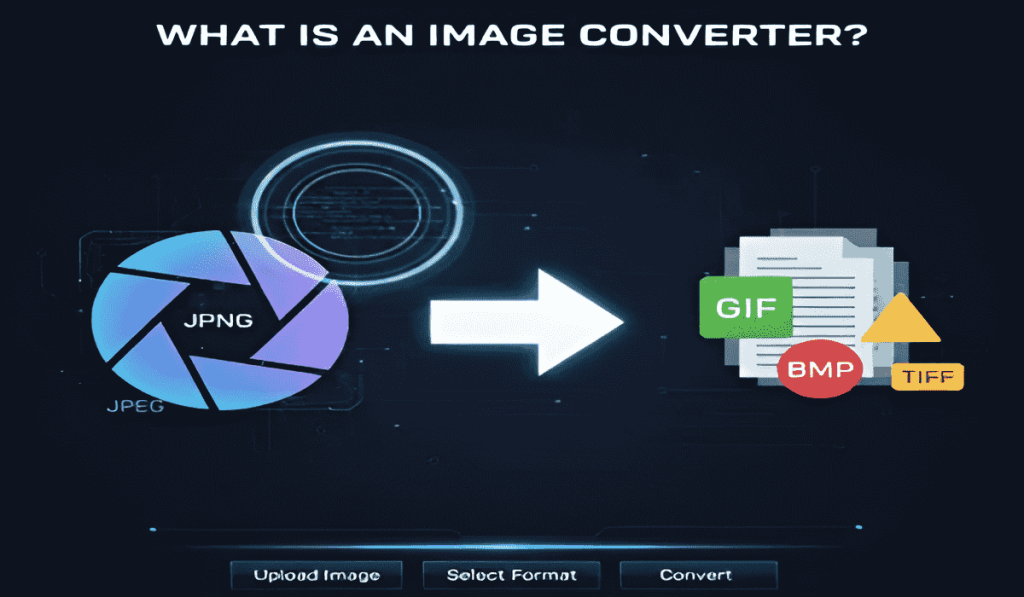
The Image Converter Tool is the online tool that changes pictures from one file to another file format, such as JPEG to PNG, HEIC to JPG, or SVG to WebP.
This platform not only converts image format but also maintains quality and compatibility on several devices. By simply uploading the images, selecting format and clicking on convert button, you can easily convert images in seconds.
Why use the online Image Converter?
Before looking at Step by step image conversion, you should know the reasons why you need to use this converter tool. Here are the reasons to use the online Image Converter
Batch conversion
The standout feature in this Online Image Converter Guide is that it processes multiple images together. It supports batch conversion and is beneficial for users who deal with a large number of images, and saves your effort and time.
Format flexibility
The robust Image Converter supports the various formats, including JPEG, PNG, SVG and TIFF. This flexibility ensures that users can easily convert to any format that fits their needs.
Image compression
Image compression is important for faster loading times and web performance. So, using image converters helps you change file format, compress the image, reduce file sizes, and preserve the quality.
Resizing option
Resizing feature is also allowed by Image Converter. It allows users to adjust dimensions as per requirements. This feature maintains the image consistency on several platforms.
Image enhancements
The advanced Image Converter is equipped with image enhancement tools. It allows users to change contrast, brightness, and saturation levels of images. It also adds an extra customization layer to the conversion process.

How to convert an image: A step-by-step guide
To learn how to use an Best Image Converter Online Tool, here is the step-by-step guide you should follow
Upload Images
The first step in any image conversion process is uploading your files. The image converter tool supports various upload methods to fit different workflows and preferences. You can upload single images for quick conversions or multiple files for batch processing.
Managing Uploaded Images
Once your images are uploaded, they show up in the management interface where you can review, organize, and prepare them for conversion. This interface provides detailed information about each file and offers options for bulk operations.
Choose the Output Format
After selecting your image, you need to choose the format you want to convert it to. Image Convert offers a variety of options, including JPEG, PNG, GIF, BMP, SVG, EPS, and WEBP. Select your desired format from the drop-down menu.
Optimizing Quality Settings
Quality settings help you balance file size and image quality based on your specific needs. Understanding these controls is crucial for achieving good results while keeping file sizes manageable.
Convert the Image
Once you have selected the output format and adjusted the settings, click the “Convert” button. The tool will process your image and convert it to the chosen format. Depending on the size of the image and the selected settings, this may take a few moments.
Save the Converted Image
After the conversion is complete, you will be prompted to save the converted image. Choose the destination folder and provide a name for the file. Click “Save” to finish the process.

Tips for Successful Image Conversion
- Understand the Purpose: Choose the right format for your needs. For example, use JPG for sharing on social media and PNG for professional graphics.
- Optimize for Web: Convert images to WebP for faster loading on websites.
- Batch Convert: Save time by using tools that allow multiple file conversions at once.
- Maintain Quality: Use high-quality settings during conversion to avoid pixel loss or loss of quality.
Conclusion
Knowing How to Use an Image Converter Tool for Quick File Conversion is important for website owners. This guide explains how to change image file formats to make them smaller, more compatible, or suitable for specific purposes.
Converting images to smaller sizes helps improve website performance, speed up loading times, enhance SEO rankings, and lower bandwidth costs.
You can simplify this process by using ILoveIMGPro free image converter, which lets you convert your images to and from JPEG, PNG, and WEBP, so you don’t have to worry about losing quality, file size issues, or compatibility problems.
FAQs
What is an image converter tool?
The image converter is an online tool that allows you to change the format of images easily. You can use this tool to convert an image to different formats.
How to convert an image?
To convert the images quickly, you should use the free image converter tool. You simply need to drag and drop the images file. Click inside white area to select the file.
Then, select the format you want to convert to and tap on the ‘ convert’ button. Once the conversion completes, you can easily download it. Moreover, you can also read our Pic Converter Online Tutorial to convert images to any format.
Will the converted image lose quality?
No, the converted image by using the best image converted does not lose the quality. It maintains the same quality after conversion.
Can I convert images to any format?
Yes, you can convert the images to any format by using the image converter tool. This flexibility ensures compatibility with several devices.
Can I add a watermark to the image with an image converter?
Yes, you can add a watermark to the image by using the image converter tool.
Does Image Converter support bulk conversion?
Yes, the image converter tool supports bulk conversion and supports several images at once. It saves your time in bulk image processing.

Hi, I’m Ravi Parmar, a digital imaging specialist with practical experience in image conversion, optimization, and handling multiple file formats for the web. I write experience-driven content that guides users in converting and optimizing images efficiently using an Image Converter Online Tool, focusing on speed, quality, and ease of use.







Leave a Reply